 Metwith
How to save business cards to Google Contacts or Outlook
If your work lives in Gmail or Outlook, the people you meet should too. Add the account to your iPhone once, tell Metwith to save there, and every card you scan reaches your computer on its own.
1. Add the account to your iPhone
Skip this if your Google or Outlook contacts already show in the Contacts app.
- Open Settings on your iPhone, then Contacts (in iOS 18, Apps › Contacts).
- Tap Accounts (Contacts Accounts in iOS 18) › Add Account, choose Google, Outlook.com, or Microsoft Exchange for a work Microsoft 365 account, and sign in.
- Make sure Contacts is turned on for that account.
2. Tell Metwith where to save
- In Metwith, open Settings and, under Save new people to, choose the Google or Outlook account.
- Scan your cards and check them.
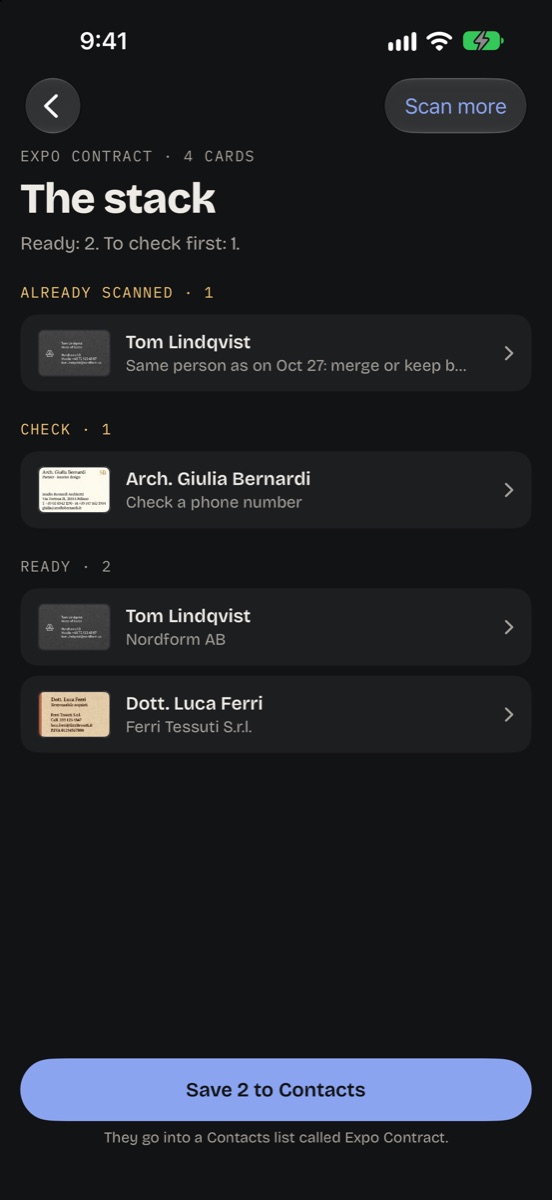
- Tap Save to Contacts. The people go to that account, and from there to Gmail or Outlook on every device.
Good to know
- The day you met is on every contact, so you can tell in Outlook or Gmail where someone came from.
- Lists for each event need an account with Contacts lists, like iCloud. Outlook (Exchange) accounts don’t have them.
- For a CRM rather than an address book, a spreadsheet works better. Business cards to Excel and your CRM
Questions
Do scanned cards go through Metwith's servers?
No. Metwith reads the card on your iPhone and saves it with iOS's own Contacts. Google or Microsoft get it the way they get any contact you add on your iPhone.
Do I get a list for each event in Outlook?
No. Outlook and other Exchange accounts don't have Contacts lists on iPhone, so the people arrive there without one. Each person still keeps the event in Metwith.
Can I change the account later?
Yes. New people go to the account chosen in Settings; people you've already saved stay where they are.
Metwith reads cards on your iPhone and saves them where you choose. No account, no subscription.
Download on the App Store