 Metwith
How to scan business cards on iPhone
There are three ways: the Camera’s Live Text for one number, the Notes scanner for a picture of the card, and a card scanner for whole contacts. Here’s how each works, and which one fits a stack from a fair.
The short answer. To turn a card into a contact, use a card scanner app: point the camera at the card, check what it read and tap Save. Without an app, Live Text in the Camera adds one number or email at a time.
1. Live Text in the Camera
Built into iPhone XS and later. Good for one card when you only need the number.
- Open Camera and point it at the card.
- Tap the Live Text button that appears in the corner of the frame.
- Tap a phone number or an email address, then choose Add to Contacts.
- Type the name, the job and the company yourself.
It’s quick for a phone number, but it doesn’t know which line is the name and which is the company, and every card starts from nothing.
2. The document scanner in Notes
In Notes, start a note, tap the camera or attachment button and choose Scan Documents. You get a clean picture of the card, and Notes can find its words in search.
It keeps the card, but the person doesn’t become a contact: you can’t call them from Contacts, and their email won’t fill in when you write to them.
3. A card scanner app
A scanner reads every line of the card, sorts it into name, job, company, phones, emails and address, and saves a full contact. With Metwith:
- Install Metwith from the App Store. It’s free for your first 25 cards.
- On Home, tap Scan cards and point the camera at the first card. Metwith finds its edges and reads it.
- Hold up the next card, and the next. Sideways cards are turned upright.
- Check the fields marked Check, the only ones Metwith wasn’t sure of.
- Tap Save to Contacts. Everyone is in your Contacts, in a list named after the event.
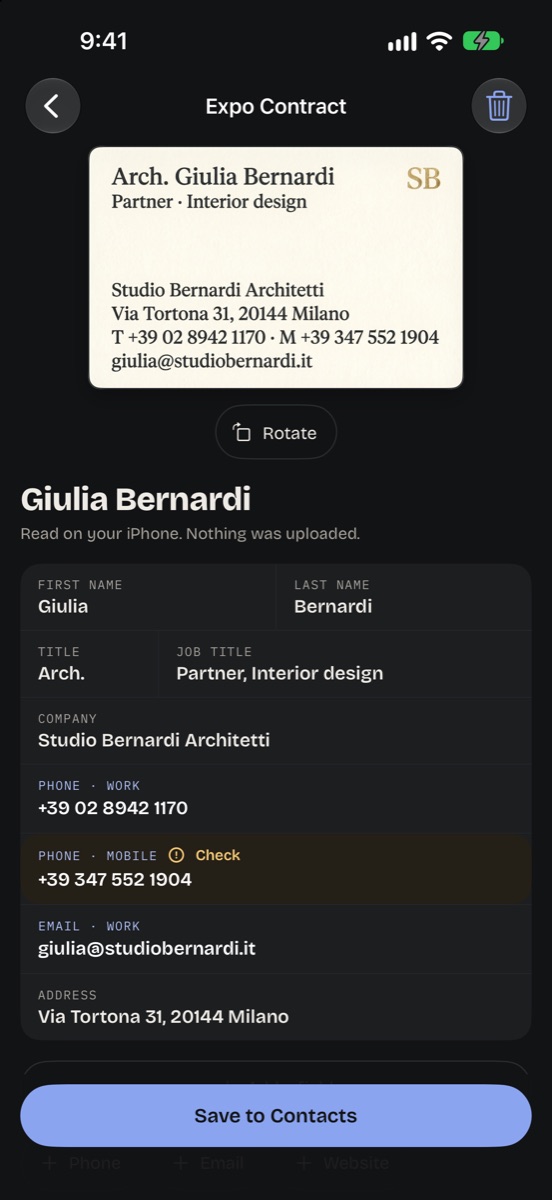
Each card also keeps where you met and a note on what you talked about, and Metwith reminds you to follow up on the day you choose.
Side by side
| Live Text | Notes scanner | Metwith | |
|---|---|---|---|
| A full contact | No, one detail at a time | No, a picture | Yes |
| A stack at once | No | Yes, as pictures | Yes |
| Where you met | No | In the note, by hand | Yes, with events |
| Follow-up reminder | No | No | Yes |
| Cost | Free | Free | Free for 25 cards, Pro paid once |
Tips for a clean scan
- Lay the card on a dark, plain surface, so its edges stand out.
- Use even light, and tilt glossy cards a little to lose the glare.
- Fill most of the frame with the card, and hold still for a moment.
- Scan the same evening. Cards in a pocket get lost, and so does what you talked about.
Questions
Can an iPhone scan business cards without an app?
Partly. The Camera's Live Text reads the text on a card and lets you add a number or an email to a contact, one at a time. It doesn't fill in a whole contact, and it can't do a stack.
Does Apple have a business card scanner?
Not as such. Live Text in the Camera and the document scanner in Notes and Files are the closest, and neither turns a card into a contact.
Is there a free business card scanner for iPhone?
Metwith is free for your first 25 cards and one event, with no account and no ads. Metwith Pro, for unlimited cards, is one payment.
Do scanned cards leave my iPhone?
Not with Metwith. Cards are read on your iPhone and saved to your Contacts; nothing is uploaded.
Metwith reads a stack of cards on your iPhone, with no account and no subscription.
Download on the App Store