 Metwith
How to share your contact with a QR code on iPhone
A QR code can hold your whole contact. Anyone who points a phone camera at it can save you, with no app, no typing and no connection. Here’s how to make one and show it in a second.
The short answer. iPhone has no QR code of your contact built in. Make your card in an app like Metwith, then show its QR code: their camera offers to add you to their contacts.
What the QR code holds
A contact QR code holds a vCard, the same format Contacts uses: your name, job, company, phones, emails, website and address. The phone that scans it reads them straight from the code, so it works anywhere, even with no signal. The more you put on the card, the denser the code, so bigger is easier to scan.
The other way is a QR code with a link to your card online. The code is simpler, and the page can show your photo and logo, but the phone needs a connection to open it. Metwith uses the contact until you put your card online, then the link.
With Metwith
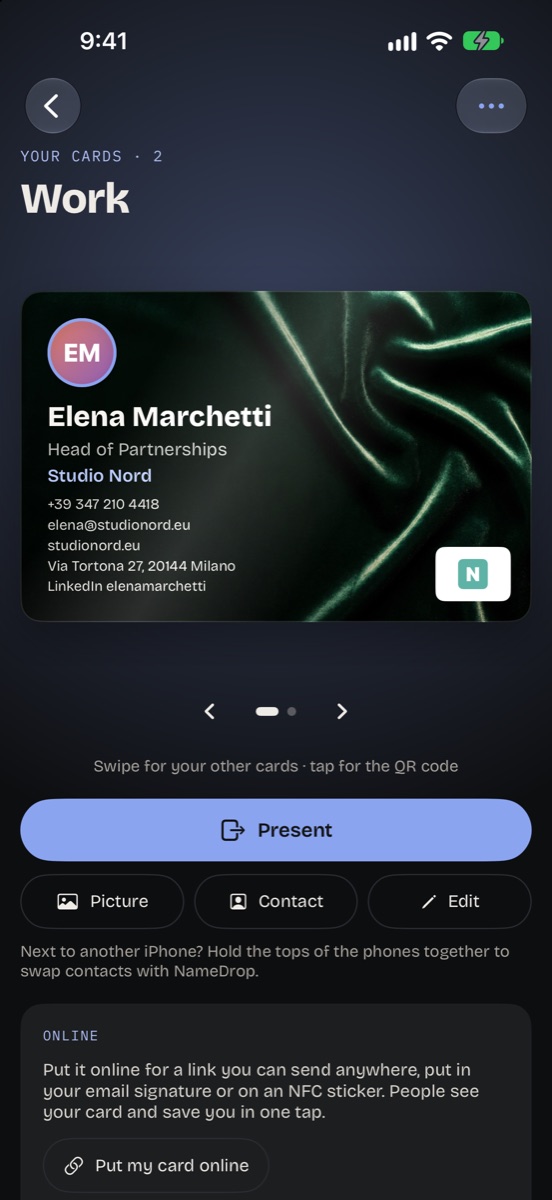
- Install Metwith and tap the card icon on Home to make your card: your details, photo and logo. Or scan your paper card to fill it in.
- On Home, tap Show my QR code. It fills the screen.
- The other person points their camera at it. Their phone offers to add you to their contacts, with your name, job, company, numbers and email.
The fastest ways to show it
- Ask Siri: “Show my Metwith card”.
- Search for your card in Spotlight, or put it on the Action button.
- Tap a Metwith widget on your Home Screen.
- Raise your wrist: on Apple Watch, your QR code is the first thing Metwith shows.
Without a QR code
- NameDrop: hold the top of your iPhone near the top of theirs, then tap Share. Both need iOS 17 or later.
- AirDrop or a message: in Contacts, open your own card and tap Share Contact.
- NFC: a sticker that opens your card when a phone taps it. How to make one
Questions
Can iPhone make a QR code of my contact by itself?
No. iPhone can share your contact with NameDrop, AirDrop or a message, but it has no QR code of your contact built in. An app like Metwith makes one.
Does the other person need an app?
No. The iPhone Camera and most Android cameras read a contact QR code and offer to save it.
Does it work without internet?
Yes. The code holds your contact itself, so neither phone needs a connection.
Is it free?
Yes. Your card and its QR code are free in Metwith, with two cards of your own.
Make your card with its QR code in Metwith. Free, no account.
Download on the App Store